
Chapter 5: Communication Blueprint
You have the library — here's how to use it
The library is yours. Now the question is: how do you pull the right template into the right email at the right moment, fast? Three ways, ranked from highest-leverage to fastest speed move:
Canva — the visual editor (where you customize and brand your packs)
Drive — your home base (full library, searchable, organized)
Inbox templates — the speed move (for the 5–10 emails you send constantly)
Pick one, two, or all three. Most agents end up using Drive as the source of truth and Canva for edits, with a small set of inbox templates for the highest-frequency emails.
Canva — the visual editor
STEP 1:
Click on the link(s) provided below to access the file(s).
Step 2:
A new tab just like you see below will open. From the popup, click “Use Template for New Design”.
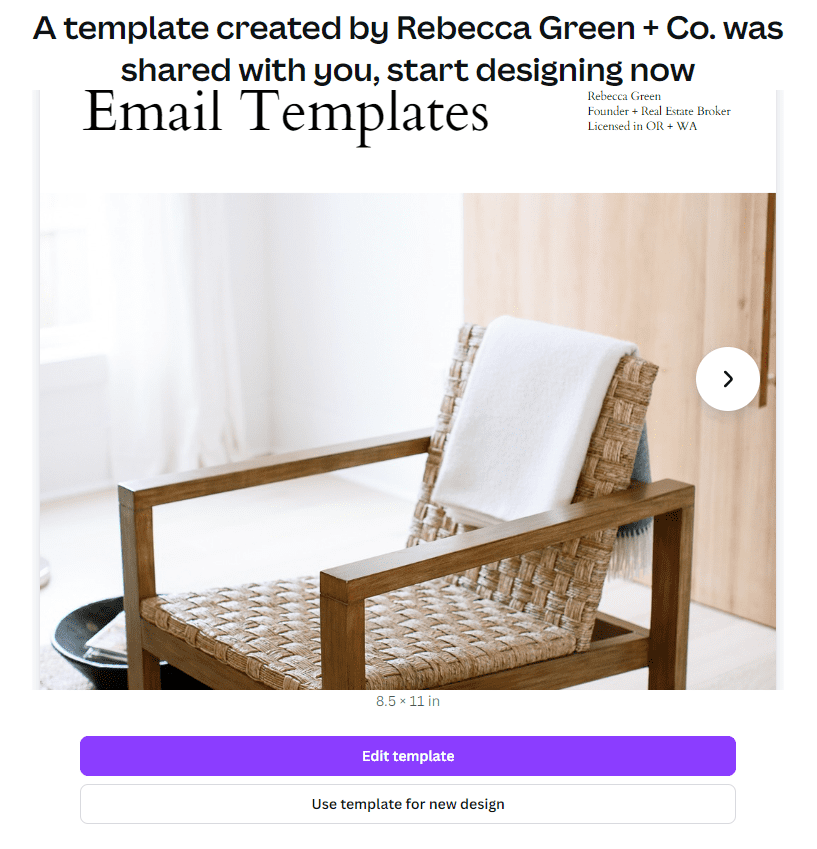
STEP 3:
Another popup will appear prompting you to sign up or sign in:
If you need to sign up: Select “Continue with Google”, “Continue with Facebook”, “Continue with Email”, or “Continue Another Way” to create your free account.
If you have an account and need to sign in: Select “Continue with Google”, “Continue with Facebook”, “Continue with Email”, or “Continue Another Way”, and enter your credentials.
If you have an account and are already signed in: See STEP 4.
STEP 4:
Once logged in, the Canva document should open automatically and will get copied to your account. The file will be called “Copy of RG+CO. [Buyer Leads, etc.] Email Templates”.
STEP 5:
We recommend creating a copy of your new Canva file and renaming it to include “Backup Version”. The original version of your Canva file should be renamed to include “Working Version” or similar — this is the one you’ll make edits in.
To Copy + Rename a Canva Project:
Copy a Canva File: Click “File” on the top left of your screen and navigate to the “Make a Copy” option
Rename a Canva File: Click on the document's name in the top right of your screen and type to rename it.
Once you’ve opened your working version, click into the body section of any email template and edit the text as desired. Canva will automatically save your work.
Next up—getting up and running with your templates so they are easy to use everyday
Drive — your home base
We use these templates every single day, and we've tested both methods — storing them in Gmail/Outlook vs working from Drive. Drive wins. Here's why:
Templates are searchable — Cmd/Ctrl+F finds anything in seconds
You can organize by folder — Buyers, Listings, Escrow, Vendors, by transaction phase, however your brain works
3-click efficiency — open Drive → click the doc → copy → paste into your email → send
Update once, served everywhere — change a template in Drive, the whole team is using the new version
Setup:
Grab the Drive folder links below.
Save each folder to your own Drive — Add shortcut to My Drive in Google Drive (or Make a copy for the individual docs if you want to edit in place).
Pin the folder in your sidebar so it's one click from anywhere in your inbox.
That's it. That's the system.
Inbox templates — the speed move
Native Gmail and Outlook templates are great for the 5–10 emails you send every single week — the ones you don't even need to think about. "Showing scheduled," "Inspection report attached," "Closing reminder," etc.
Important: This is a speed tactic, not a system. Gmail/Outlook templates aren't searchable, aren't organized by folder, and once you hit 20+ they turn into a scroll-and-guess game. Managing 75 templates this way is total chaos. Use it only for your top handful.
Gmail setup (5 steps):
From desktop (this won't work on mobile), open Gmail Settings → See all settings.
Go to the Advanced tab → enable Templates.
Open Compose, paste your template (use Paste and Match Style on Mac or Paste as Plain Text on Windows so the formatting doesn't break).
Remove your signature from the template body so it doesn't duplicate when you reuse it.
Click the ⋮ in the bottom-right of the compose window → Templates → Save draft as template → name it → save.
Outlook setup: Settings → Mail → Compose and reply → save your template snippets in the Quick Steps or Signature panel (varies by Outlook version).
For the full library, always work from Drive. Inbox templates are the cherry on top.
When Claude does this for you
The fastest version of all of this isn't picking the right folder or remembering where you saved a template. It's Claude pulling the right template, pre-filling it with the deal details, and dropping it into your inbox before you ask. That's the auto-drafting engine — a Claude skill pre-trained on your templates and your voice, installed in your own account.
The templates are here inside of the CEO Agent Academy. Inside of the CEO Agent Studio you'll get 6 months of guided engineering, where we take everything inside of the CEO Agent Academy and build your infrastructure together with an AI element to everything. We're building your business engine.
👉 Start with the CEO Agent Studio right here.